How to export Figma emails to Brevo
Design your transactional emails in Figma, import them into Mailkick with one click, and sync directly to Brevo (formerly Sendinblue). No manual HTML coding, no copy-pasting code.
Mailkick syncs to Brevo Transactional templates (SMTP API). Make sure you have a Brevo account with transactional email access.
What you need
- A free Mailkick account
- The Mailkick Export Figma plugin
- A Brevo account with a transactional API key
Step 1 — Design your email in Figma
Create your email layout in Figma at 600px width using Auto Layout for best results. Use your brand colors, typography, and images as you normally would.
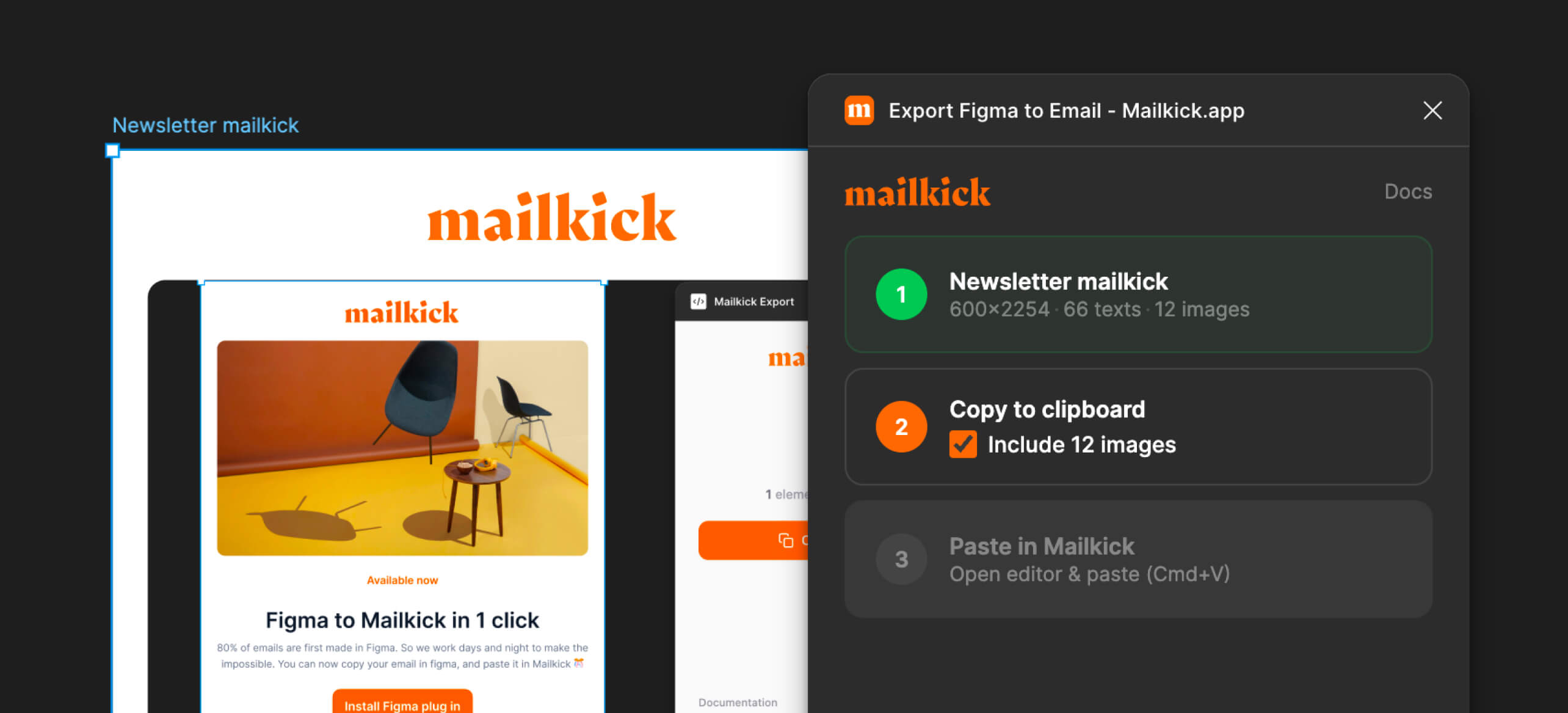
Step 2 — Import into Mailkick
- Select your email frame in Figma
- Open Plugins → Mailkick Export
- Click Copy Email
- In the Mailkick editor, press
Cmd+V/Ctrl+V - Click Export Images in the plugin and drop the ZIP into Mailkick
Step 3 — Connect Brevo
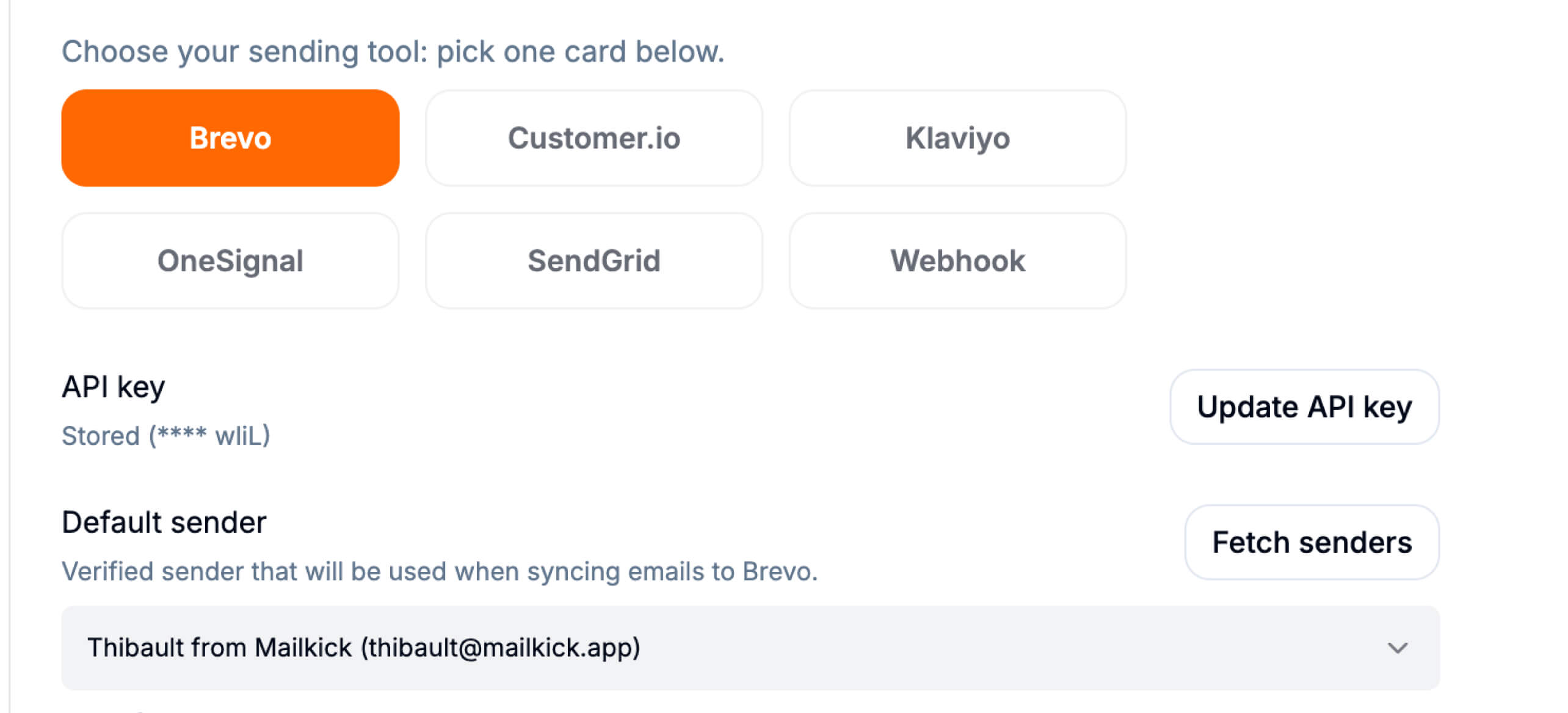
- In Mailkick, go to Settings → Integrations
- Select Brevo
- Paste your Brevo Transactional/SMTP API key
- Click Save changes
Use the SMTP & API key from Brevo, not the Marketing API key. The integration won't work with the wrong key type.
Optional: Set a default sender
- Click Fetch senders in the Brevo integration settings
- Pick a verified sender
- Click Save changes
Step 4 — Sync to Brevo
- Open your email in the Mailkick editor
- Click Export
- Click Sync to Brevo
Done. Your email is now live as a Brevo transactional template.
How the sync works
| Action | What happens |
|---|---|
| First sync | Creates a new template in Brevo |
| Subsequent syncs | Updates the existing template |
| Content unchanged | No API call (content hash check) |
| Template deleted in Brevo | Mailkick recreates it automatically |
Using Brevo variables
Use Brevo's template variables directly in your email text:
Hello {{ params.first_name }},

Your order #{{ params.order_id }} has been shipped!
These variables resolve when you send via the Brevo Transactional API.
Why use Mailkick instead of Brevo's editor?
| Mailkick + Figma | Brevo's editor | |
|---|---|---|
| Design in Figma | Yes | No |
| Centralized design tokens | Yes | No |
| Reusable components | Yes | Limited |
| AI translation | Yes | No |
| Automatic sync | Yes | N/A |
| React Email HTML | Yes | Proprietary |
| Team collaboration | Yes | Basic |
Frequently asked questions
Which Brevo API key should I use?
Use the SMTP & API key from Brevo, not the Marketing API key. Go to your Brevo dashboard → SMTP & API → API Keys. The integration won't work with the wrong key type.
Does Mailkick update existing Brevo templates or create new ones?
First sync creates a new template. Subsequent syncs update the same template. If you delete the template in Brevo, Mailkick recreates it automatically on next sync.
Can I use Brevo variables in my email?
Yes. Use Brevo's double-curly-brace syntax directly in your email text, like {{ params.first_name }} or {{ params.order_id }}. Variables resolve when you send via the Brevo Transactional API.
Does Mailkick sync every time I save?
No. Mailkick uses content hashing — it only syncs when your email content has actually changed. Saving without changes won't trigger an API call to Brevo.
Next steps
Troubleshooting
| Error | Cause | Solution |
|---|---|---|
brevo_invalid_route_or_method | Wrong API key type | Use the SMTP & API key, not Marketing |
brevo_sender_missing | No sender configured | Add a default sender in integration settings |
brevo_sender_invalid_or_inactive | Sender not verified | Verify the sender email in your Brevo account |
| "Save before syncing" | Email not saved | Save the email, then sync |